

Standards and Resources for
Label Artwork
Preparing label artwork for print requires more than great design—it takes technical precision. From color management and dielines to trapping, bleed, and file setup, every detail plays a role in achieving high-quality, cost-effective results. At KDV Label, our in-house prepress team bridges the gap between design and production, ensuring your files are optimized for our printing processes and ready to run smoothly on press. Use the guidelines below to help set your label art up for success.
Quick artwork reference guide
SUPPLYING ARTWORK
When supplying artwork the preferred file format we want is a packaged Adobe Illustrator with layered elements and live effects. Other file formats we accept are Adobe PDF, Quark Express Adobe InDesign, EPS, TIFF, and other vector files.
We require high resolution PDF, fonts, and images included for all formats.

Art file specifications
Everyone approaches the design process differently, but there are key elements that make for a more streamlined, successful path from your computer screen to printed labels. We have outlined some of the best ways to avoid issues and additional set up costs.
FILE SETTINGS
- Create your artwork file and all images in CMYK (Cyan, Magenta, Yellow, Black) mode – NOT RGB
- Define and identify spot colors with the Pantone solid coated designation
- Limit use of CMYK color mixtures in line art
- Delete unused colors
- DO NOT trap unless you are supplying direct-to-print (DTP) files
- Layer components with only one label per file (e.g., separate files for each SKU)
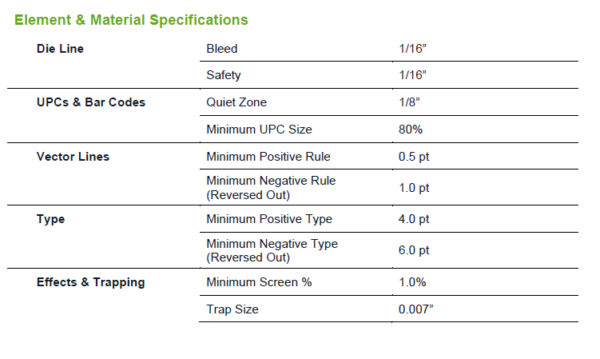
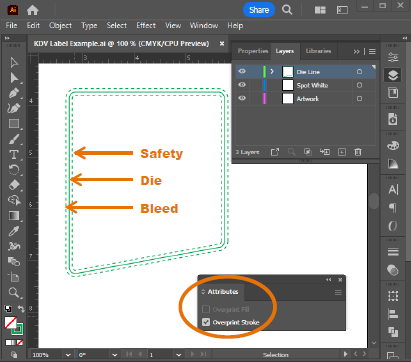
- Include a layer with the die line labeled appropriately, safety (1/16”) and bleed (1/16”)
- Include a layer for spot white, labeled appropriately, if printing on clear or metalized base material
Graphcs
- Keep graphics as a separate file placed into the label artwork- DO NOT embed them in the art file
- NOTE: crop, scale, rotate, etc. all images and save graphic, then place in label art file
- Delete unwanted items in the art file- DO NOT cover them up, nor turn visibility off
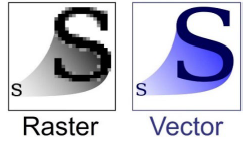
- Ensure all graphics are vector or high resolution (300 dpi)
- NOTE: vector images (e.g., EPS) are always preferred over raster images (e.g., JPEG, PNG, GIF)- see image below
- Lines
- Positive minimum rule is 0.5 point
- Negative (reversed out, white, cut out) minimum rule is 1 point
Colors
- Clearly indicate all spot colors (Pantone solid coated)
- Add a layer for spot white on labels to be printed on non-white base material
- Do NOT create an overprint white layer or shape(s) unless you are specifying the use of white ink (you want to print spot white)
Effects
- Leave transparency and Illustrator effects as live effects
- DO NOT rasterize
- DO NOT rasterize or flatten effects- leave them as Adobe Illustrator effects
- Ensure all graphics are vector or high resolution (300 dpi)
- Carry gradients over the complete visible area
- Drop shadows should be one color (spot or a process color)
- End gradients transitioning from opaque to transparent at 1% opacity, NOT 0% opacity
- Separate gradients of spot colors (two different plates)- same with a spot or a process color
- Options > solid cyan behind gradient > navy
barcodes
- We check all bar codes to ensure proper scanning. We can produce and place bar codes, as well as work with you to make adjustments should the bar code you supply not scan satisfactory
- Quiet zone minimum is 1/8″
- Minimum size is 80%
Fonts
- Minimum positive font size 4.0 point
- Minimum negative (reversed out, white, cut out) font size 6 point
- Leave text live and editable- do NOT outline
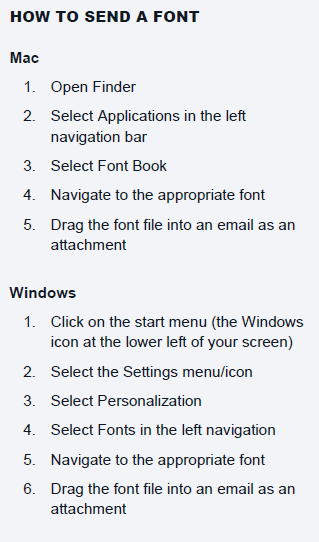
- Font files MUST be included
- If fonts cannot be included, outline fonts (KDV will not be able to edit)
safety and bleeds
- Allow for a 1/16″ safety zone inside your die line
- Run label art to a 1/16″ bleed outside of your die line
- Indicate your die line with a visible solid line in a layer on top of your art layer(s)
- Include the safety line, die line, and bleed line in its own layer and tagged as overprint strokes in the Attributes menu
File types
Most Preferred PACKAGED Adobe Illustrator (AI)
When you package your file, Adobe Illustrator collects all the connected image and font files into a folder and retains the connection to the files in a new copy of your artwork. This allows you to provide all the necessary elements for a collaborator, like KDV, to assist with the file. The following outlines how to package your Adobe Illustrator file.
- Click to open the File menu in the top navigation bar
- Select Package
- The pop-up will ask you to
- “Select a location to make the folder
- Name the folder
- Select which options (recommendation is to select all options)
- The pop-up will ask you to
- If a restrictions disclaimer box pops up, review and click “OK” if you agree/comply to the statement
- A final pop-up box confirming you file has been packaged may also appear.
- Zip the folder your files have been packaged in
- On a PC:
- Right click on the packaged file folder
- Hover over ‘Send to’ and select “Compressed (zipped) Folder”
- The zipped folder will be created in the same file location as the packaged file folder
- On a Mac:
- Right click on the packaged file folder
- Select “Compress [FOLDER NAME]”
- The zipped folder will be created in the same file location as the packaged file folder
- On a PC:

Other File Formats
File formats other than Adobe Illustrator may lead to added lead time, setup fees, or reduced quality. After evaluating the artwork, we will provide an outline of specific quality concerns, as well as an estimate of time and fees to prepare the artwork for print.
Adobe PDF (.pdf)
Be sure your PDF is high resolution. We will open your art file in Adobe Illustrator to perform our prepress process. We may need to ask for the fonts and image files used in your artwork if you do not send them with your PDF.
Quark (.qxp, .qxd) and Adobe InDesign (.indd)
Export your artwork as high-resolution PDF. We will open your art file in Adobe Illustrator to perform our prepress process. We may need to ask for the fonts and image files used in your artwork if you do not send them with your PDF.
EPS, TIFF, and other Vector Formats
We will open your art file in Adobe Illustrator to perform our prepress process. We may need to ask for the fonts and image files used in our artwork if you do not send them with your PDF.
NOTE: Adobe Photoshop is an excellent tool for editing the images you would like to use on your label. However, we recommend using Adobe Illustrator for creating the label, specifying the die line, as well as for adding shapes, text, and effects versus doing this work in Adobe Photoshop.
Artwork service levels
From the lightest touch with direct-to-plate (DTP) files through full-service label design, our team ensures your labels look and perform as expected. Our prepress team collaborates with our production team to leave nothing to chance and offer recommendations for minimizing cost, print time, and production or application issues. They are the first of constant quality checks throughout the KDV production process.
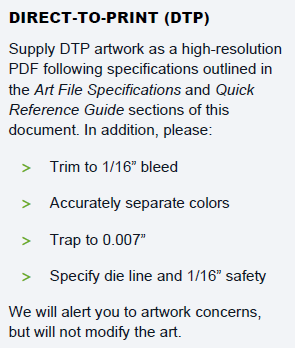
Directo-to-Plate (DTP)
We accept your supplied direct-to-plate files. Your artwork should specify colors, be trimmed to bleed, and be fully trapped, as well as align with print specifications outlined in this document. Our prepress team will review your files to confirm your labels will print as expected, alert you of any concerns, and if necessary, work with you to make adjustments. Additional setup charges may apply for these adjustments; however, we will get your approval prior to moving forward.
Prepress
Our prepress team, made up of experienced, flexographic print production design experts, optimizes the artwork you supply to ensure on-press accuracy. This service includes:
- Reviewing supplied artwork in KDV die line to ensure correct size
- Cleaning up layers and color swatches
- Reviewing color separation (colorize file correctly Adjust colors when necessary)- spot versus process and eliminate 4-color black (no extra color charge)
- Adjusting stroke widths and text readability
- Ensuring minimum dot requirement on all gradients, shadows, etc.
- Trapping the file
- Images:
- Reviewing in Photoshop and applying clipping paths if necessary
- Eliminating unnecessary screens of colors
- Generating trapped, PDF proof for customer approval and/or printed proof upon request (NOTE: fees apply for printed proofs)
- Stepping approved artwork, then producing and reviewing plate production files
Craftsmanship, one of KDV’s core values, and our prepress team is critical component in producing labels that uphold our standards of quality. We balance automation with human review, analysis, and often, a bit of artistry to ensure an extremely accurate and efficient process for getting your labels to press and producing labels that will represent your brand impeccably.
Design and Prepress
A KDV graphic and print specialist are here to help you capture your brand with the perfect construction and design for your labels. Our experienced team members across label design, production, and application come together to select a die line and create an eye-catching label with exceptional performance.
Fees for this level of service vary. It is helpful to be prepared with text you would like or need on your label, as well as your logo and any other graphics.
Label element resources
Get Bar Codes and UPCs
GS1 at GS1us.org (formerly the Uniform Code Council)
2020 FDA Nutrition Facts Updates
https://www.fda.gov/food/nutrition-education-resources-materials/new-nutrition-facts-label
FDA Guidance Documents
https://www.fda.gov/regulatory-information/search-fda-guidance-documents
FDA Food Labeling Guide
https://www.fda.gov/regulatory-information/search-fda-guidance-documents/guidance-industry-food-labeling-guide
USDA Food Labeling Resources
https://www.nal.usda.gov/human-nutrition-and-food-safety/food-labeling
USDA Guide to Federal Food Labeling Requirements for Meat, Poultry, and Egg Products
https://www.fsis.usda.gov/guidelines/2007-0001